

Enhance your workflow with efficient text extraction from screen captures on your Mac using OCR. Boost productivity today.
Use Mac's Shortcuts app: Press ctrl + space, search for Shortcuts, and open it. You'll likely see something like this.

1. Create a new shortcut#
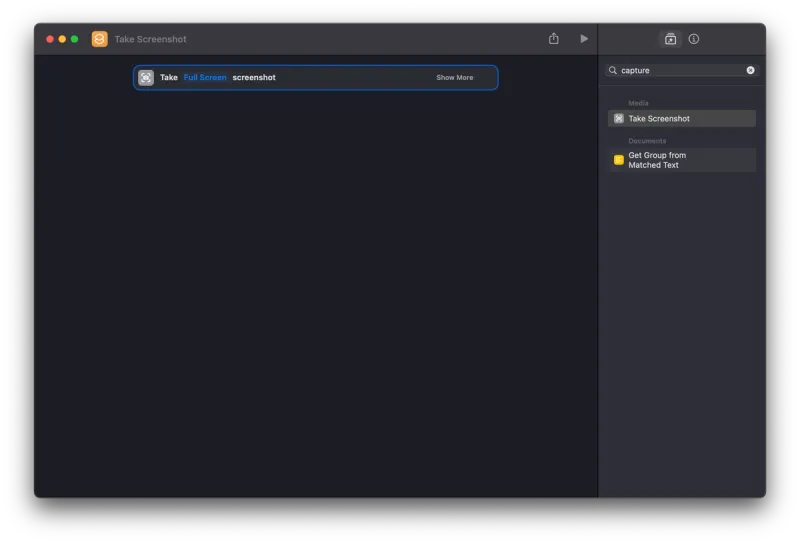
Click the plus button, search for "Capture," and double-click "Take Screenshot" under Media section. It will look like this.
2. Make screenshot action interactive#
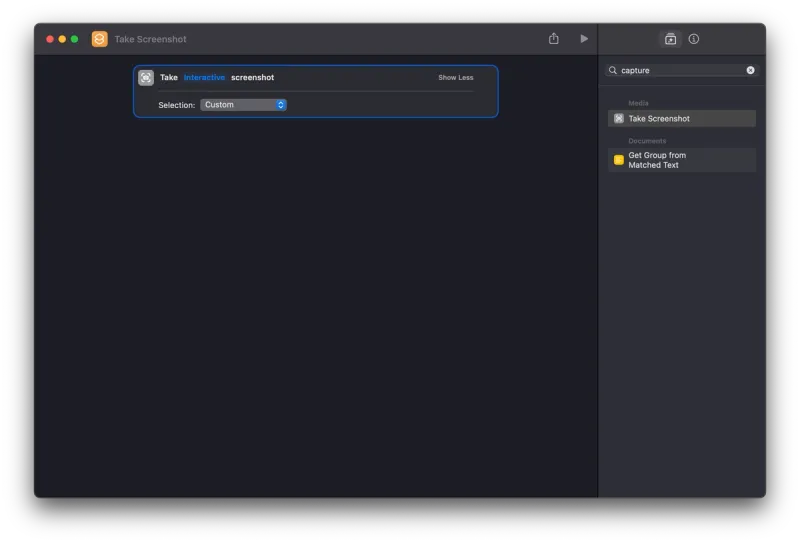
But ofcourse we don't want to select text from full screen. We want to select some portion of our screen and get text out of it right? Click on full screen, switch to interactive, click "Show More," and choose "Custom" in the selection field.
3. Add extract text from image action#
Search "extract" in the action library, double-click "Extract Text from Image" in the documents section. This adds another action to our shortcut workflow.
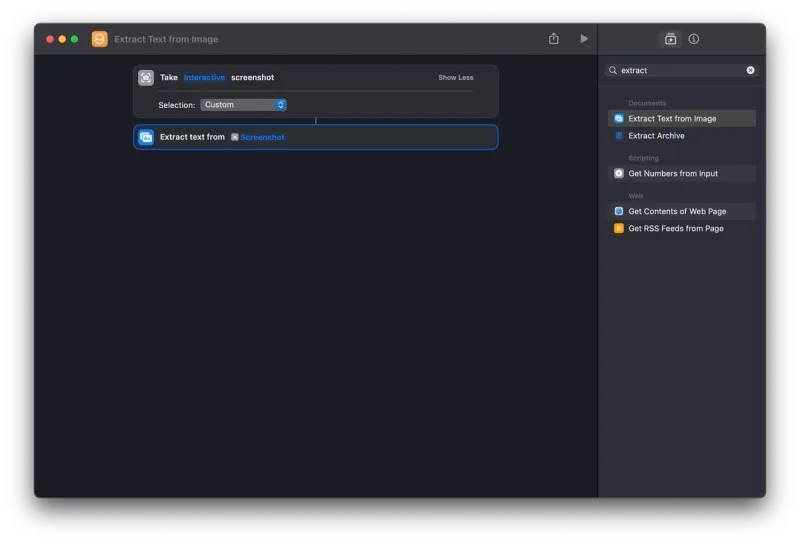
Preview by clicking the play icon. It works as expected, but for multiline text, Mac shortcut uses pages. We need to combine text from multiple pages as needed with newline / spaces or however we prefer.
4. Combine text#
Look for "combine" in the action library. Double-click "Combine Text" in the documents section. This adds another action to our shortcut workflow.
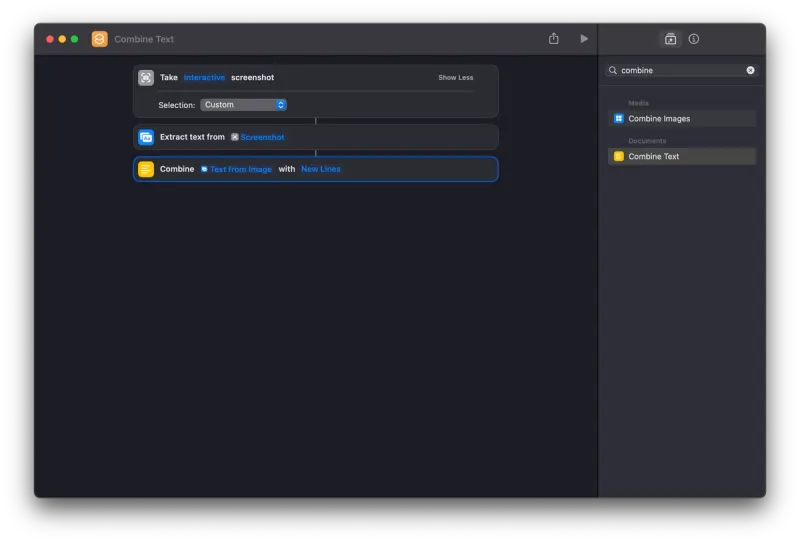
Modify new lines to spaces or customize as needed. Explore options to enhance your understanding of shortcuts, but we'll stick with new lines for now.
5. Copy to clipboard#
Look for "copy" in the action library. Double-click "Copy to Clipboard" in the sharing section. This adds another action to our shortcut workflow.
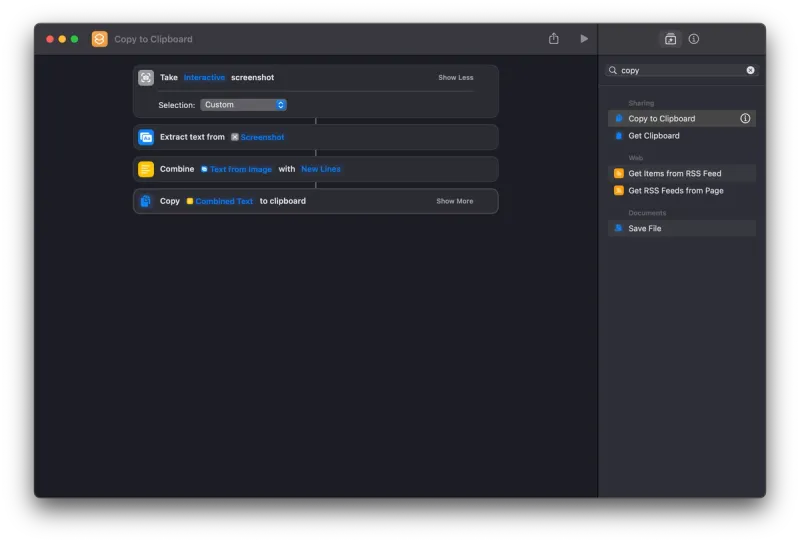
That's it. Name it and assign a shortcut for quick access. Let's proceed to set it up.
6. Rename and have quick access to shortcut.#
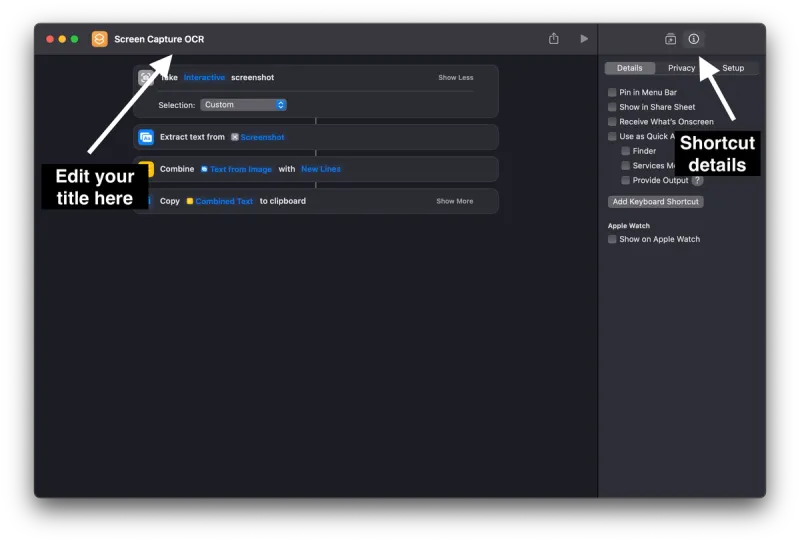
- Go to shortcut details as shown in image above
- Click "pin in menu bar" to always keep it in your menubar.
- Click on Add keyboard shortcut button. You can use "Command Shift 7" since it's not allocated to any other shortcut.
That's it next time you use "Command shift 7" you should be able to select a portion of your screen and get text out of it
Here are the benefits of using the shortcut:#
- It allows you to capture text from anywhere on your screen, even if it's not in a format that you can easily copy.
- It can save you time and effort compared to manually copying and pasting text. Goodbye google lens for extracting text.
- It can be customized to your specific needs, such as by adding a keyboard shortcut to trigger the shortcut.

